
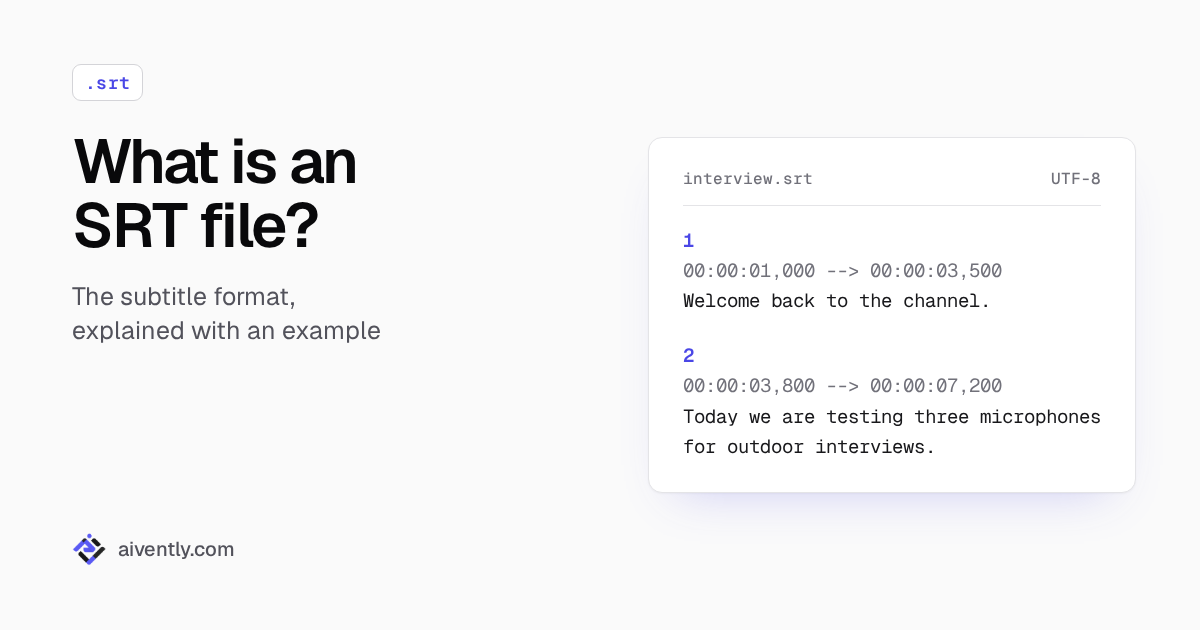
An SRT file is a plain text subtitle file. It lists each subtitle with a number, the time it appears and disappears, and the words to show. Video players, editing software and platforms such as YouTube read it and display the text over the video at the right moments. Because it is plain text, you can open, check and edit an SRT file in any text editor.
The name comes from SubRip, an early program that extracted subtitles from video discs and saved them in this format. The format outlived the program and became the most widely supported subtitle file there is.
SRT example
Here are three cues from an SRT file:
1
00:00:01,000 --> 00:00:03,500
Welcome back to the channel.

2
00:00:03,800 --> 00:00:07,200
Today we are testing three microphones
for outdoor interviews.

3
00:00:07,600 --> 00:00:09,000
Let's start with the cheapest one.
Want a file to test with? The free sample SRT files page has ready-made examples to download.
How the SRT format works
Every cue follows the same four-part pattern:
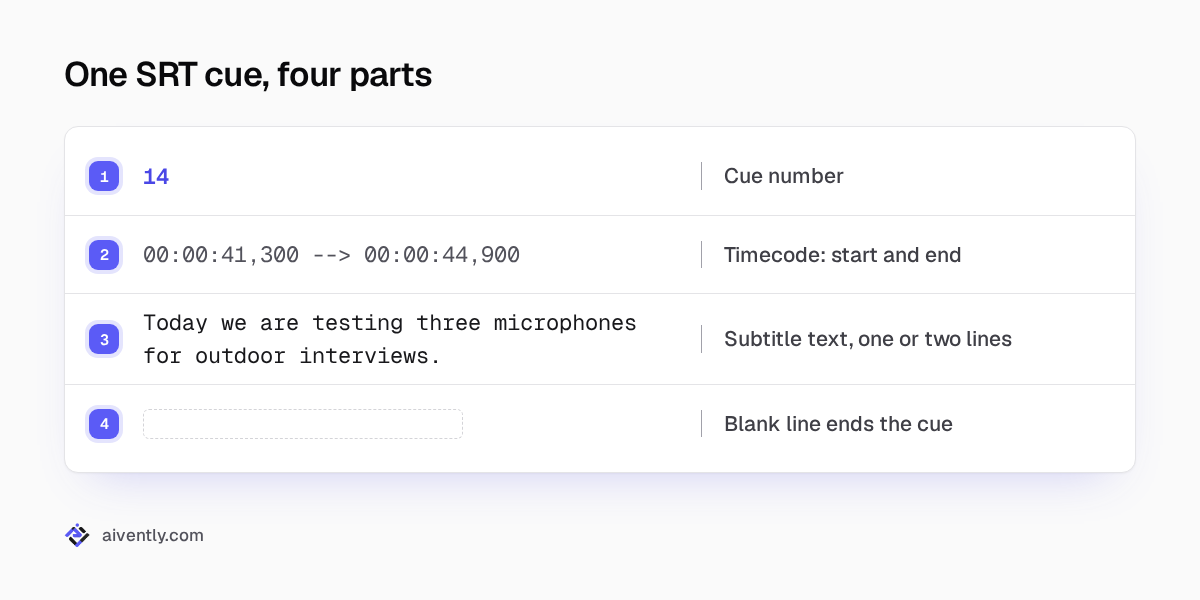
- Cue number. A counter that starts at 1 and goes up by one for each cue.
- Timecode line. The start time, an arrow (
-->) and the end time. Times use hours, minutes, seconds and milliseconds, written as00:00:03,500. The separator before the milliseconds is a comma, not a period. - Text. One or two lines of subtitle text. A line break in the file is a line break on screen.
- Blank line. An empty line ends the cue and separates it from the next one.
That is the whole format. There is no header, no settings block and no standard way to set fonts or screen position. Some players read basic italic and bold tags inside the text, but support varies, so many workflows keep SRT text unformatted.
What SRT files are used for
- Uploading captions to video platforms. YouTube, Vimeo and most social platforms accept SRT files as caption tracks that viewers can turn on or off.
- Importing subtitles into editing software. Premiere Pro, DaVinci Resolve and other editors import SRT onto a caption or subtitle track.
- Playing subtitles in media players. Players such as VLC load an SRT file that sits next to the video, usually when both share the same file name.
- Translation and localization. One SRT file per language, all sharing the same timecodes, is a common way to deliver multilingual subtitles.
How to open and edit an SRT file
Open it in any plain text editor: Notepad on Windows, TextEdit in plain text mode on macOS, or a code editor such as VS Code. Word processors can add hidden formatting, so avoid them for editing.
When you save, keep three things intact:
- The
.srtextension. Some editors try to add.txtto the end of the name. - UTF-8 encoding. It displays accented letters and non-Latin scripts correctly. Files saved in an older encoding show broken characters such as "é" in place of "é".
- The structure. Every cue still needs its number, its timecode line and a blank line after the text.
How to make an SRT file
There are three common ways to get an SRT file:
- Write it by hand. Type the cues in a text editor using the pattern above and save the file as
.srtin UTF-8. This works for a short clip but becomes slow beyond a few minutes of dialogue. - Export it from an editor. Video editors and subtitle tools that create captions can export them as SRT.
- Transcribe the audio. A transcription tool turns speech into timed text, which you review, correct and export as SRT.
Common SRT problems
- A period in the timecode.
00:00:03.500is WebVTT style. Many players reject or misread it in an SRT file. - Missing blank lines. Without the empty line, a player can merge two cues or skip one.
- Overlapping cues. A cue that starts before the previous one ends can make subtitles flicker or stack.
- Wrong encoding. Garbled accented letters usually mean the file was not saved as UTF-8.
- Timing for a different edit. If subtitles drift further out of sync as the video plays, the file was made for another cut or frame rate.
The free Subtitle Checker finds overlaps, long lines and fast reading speed in a file before you deliver it. It runs in your browser, so the file is not uploaded.
SRT files in Aivently
Aivently works with SRT files in both directions. You can upload an existing SRT file and translate it into one or more languages, with cue numbers, timing and tags preserved. Or you can transcribe audio or video and export the result as SRT. Both jobs open in one editor where the source and the result sit side by side, and checks flag long lines, fast reading speed and overlaps before you export.
Besides SRT, Aivently accepts WebVTT, ASS/SSA, SBV, TTML/DFXP and other subtitle formats, and exports SRT, VTT, ASS, TXT and JSON. The file is measured first, so you see the exact credit total before a job runs, and your first 10 minutes are free once your email is verified.
Translate an SRT file or create an SRT file from audio or video.